

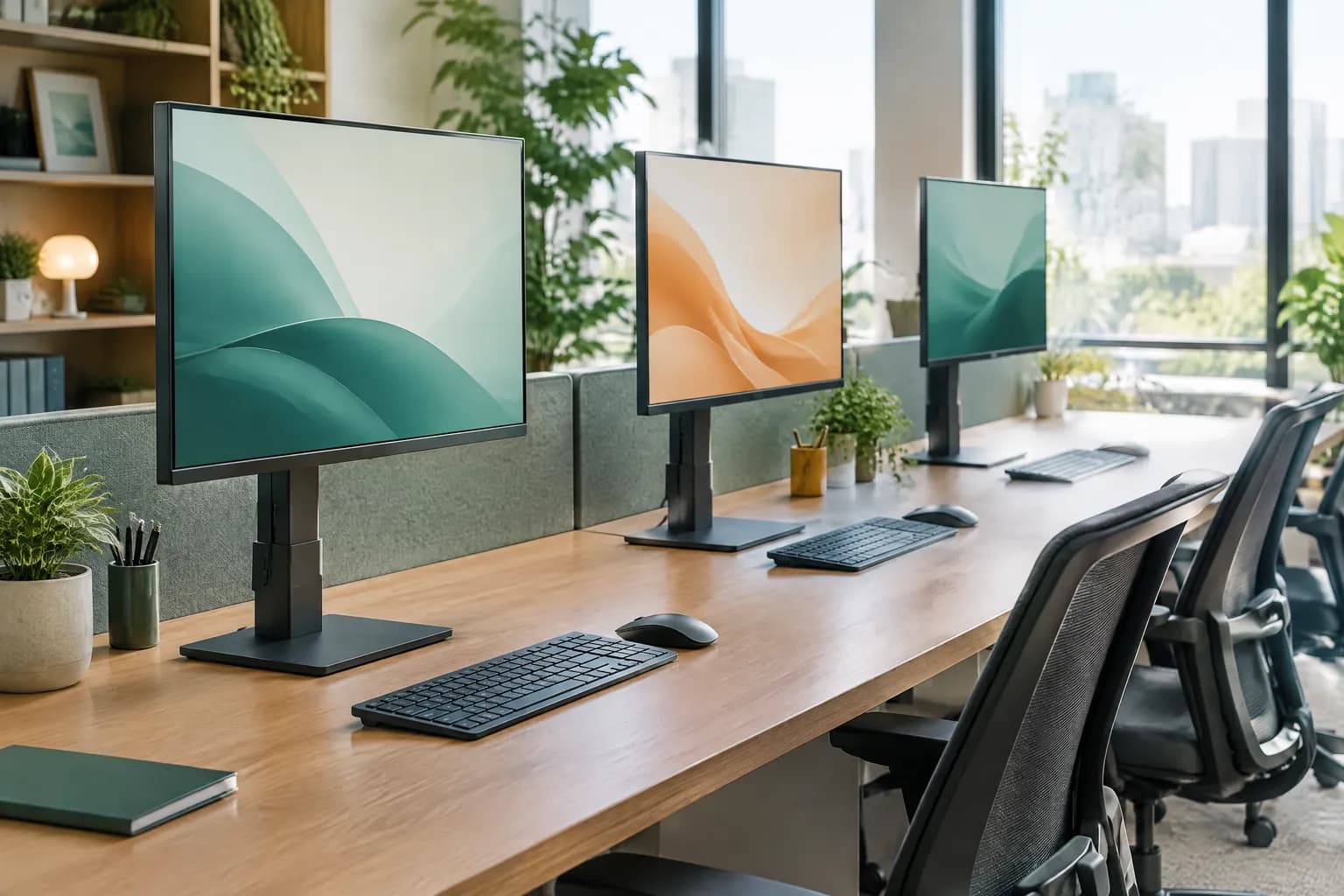
For most office buyers the right default is a 24-inch Full HD IPS monitor with a height-adjustable stand, HDMI and DisplayPort; move to 27-inch QHD for heavy multitasking, to USB-C docking models for laptop desks, and to colour-calibrated panels only for teams whose work depends on accurate colour.
Monitors outlast the computers they are attached to, often by several years, so a bulk monitor order deserves more thought than it usually gets. The choices below cover the decisions that make a difference to users and to the people who support them.
Which size and resolution?
| Size | Resolution | Approximate pixel density | Good for |
|---|---|---|---|
| 22-inch | 1920 × 1080 (Full HD) | 100 ppi | Reception, kiosks, tight desks |
| 24-inch | 1920 × 1080 (Full HD) | 92 ppi | General office work, the usual default |
| 27-inch | 2560 × 1440 (QHD) | 109 ppi | Spreadsheets, coding, multi-window work |
| 27-inch | 3840 × 2160 (4K UHD) | 163 ppi | Design, photo and detailed drawing work |
| 34-inch ultrawide | 3440 × 1440 | 110 ppi | Replacing two screens, timelines and dashboards |
Avoid 27-inch Full HD for office work: text looks soft at normal viewing distance. And remember that a 4K panel on a 27-inch screen usually needs display scaling, which some older business software handles poorly.
IPS, VA or TN panels?
IPS panels give consistent colour from wide viewing angles, which matters when people share a screen or sit at an angle to it, and they are now standard on business monitors. VA panels offer deeper contrast and suit curved ultrawides and dim rooms. TN panels are cheap but colours shift as you move your head; they are best avoided for office fleets.
Which ports should you specify?
- HDMI and DisplayPort on every monitor, so it works with any desktop or laptop
- USB-C with power delivery for laptop desks; check the wattage covers the laptops' charger rating
- A built-in USB hub, and Ethernet on dock-style monitors, to make one-cable desks possible
- DisplayPort output for daisy-chaining a second monitor where the computer supports it
- Matching cables included in the box, specified per order
Stands, mounting and ergonomics
A height-adjustable stand lets each user put the top of the screen near eye level, which reduces neck strain over a working day. Tilt, swivel and pivot add flexibility. If you plan to use monitor arms, or to mount mini PCs behind the screens, specify VESA 100 × 100 mounting, which most business monitors offer. Fixed stands are acceptable for receptions, kiosks and training rooms.
One monitor, two, or an ultrawide?
Dual monitors are common in finance, development, operations and support roles, where one screen holds reference material and the other the work. Two 24-inch Full HD monitors cost less than one large premium screen and give each user flexibility. A 34-inch ultrawide gives similar space without a bezel in the middle and with one cable, which suits timelines, dashboards and wide spreadsheets. For general office staff, one good 24 or 27-inch monitor is usually enough.
Monitors for shared and public spaces
Receptions, libraries, classrooms and training rooms put different demands on a monitor. A fixed stand is sturdier than an adjustable one, a security lock slot deters theft, and a matte anti-glare finish copes with bright rooms. Built-in speakers and webcams are useful in training rooms but add parts that can fail; buy them only where they will be used.
Pairing monitors with mini PCs
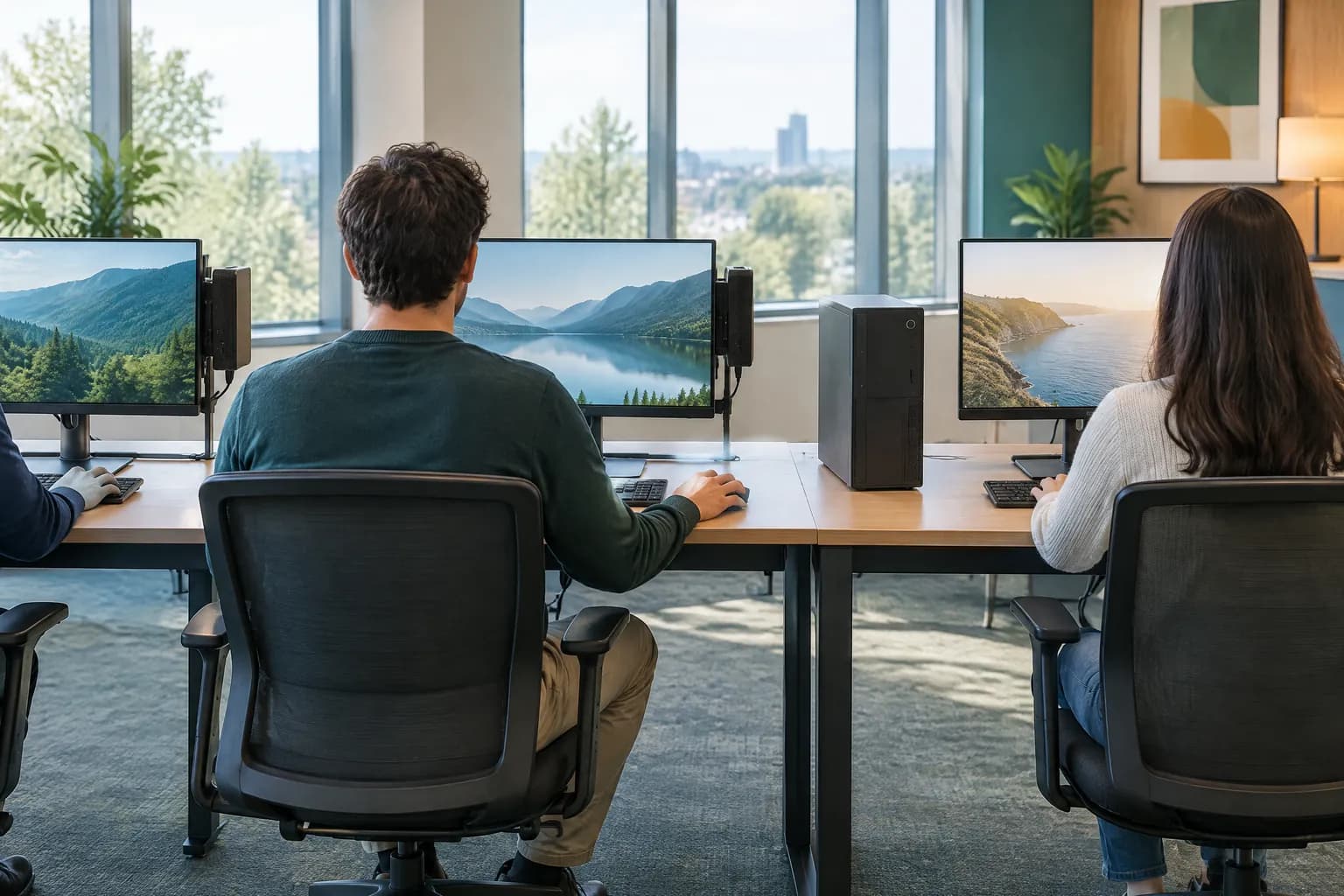
One-litre mini PCs can bolt to the back of a monitor using a VESA bracket, turning a monitor into a tidy all-in-one that is easier to repair. Check that the monitor has VESA mounting with enough clearance behind the stand, that the bracket suits the mini PC model, and that the monitor's inputs match the PC's outputs. Order the brackets with the monitors.
Eye comfort and efficiency markings
Flicker-free backlights and low blue-light modes are common on business monitors and worth asking for. Labels such as ENERGY STAR, TCO Certified and EPEAT belong to specific models and are registered by the manufacturer. We check them against the maker's own registrations for each model quoted and never claim them for a model that is not listed.
What to check on refurbished monitors
- The supplier's grading definition and photos of representative units
- Pixel policy: many makers reference the ISO 9241-307 pixel fault classes, and suppliers apply their own tolerance
- Backlight bleed, uneven brightness and image retention checks
- Stand, power supply and video cable included or not
- Panel hours where the monitor reports them
Power, plugs and packing
Business monitors accept 100–240 V, so the main check is the mains lead for each destination. Panels are fragile in transit: insist on individual cartons with foam, palletised and corner-boarded for freight, and inspect cartons for damage before signing for delivery.
A quick specification for an office tender
- 24-inch IPS, 1920 × 1080, anti-glare finish
- HDMI and DisplayPort inputs; USB-C with power delivery where laptops are used
- Height-adjustable stand with tilt, swivel and pivot; VESA 100 × 100
- Flicker-free backlight and low blue-light mode
- Mains lead for the destination and one video cable included
- Efficiency and ergonomic markings as listed by the manufacturer for the model
Related pages
- Business monitors- 22 to 34-inch office and professional displays
- Planning a desktop fleet refresh- Monitors are part of the refresh plan
- Keyboards, mice, headsets and webcams- Peripherals to complete each desk
- Laptops for USB-C desks- Business laptops on Wholesale Laptops Dubai
- Office networking- Switches and Wi-Fi on Network Supply Dubai
Related reading

Leave a Comment
Your email address will not be published.