

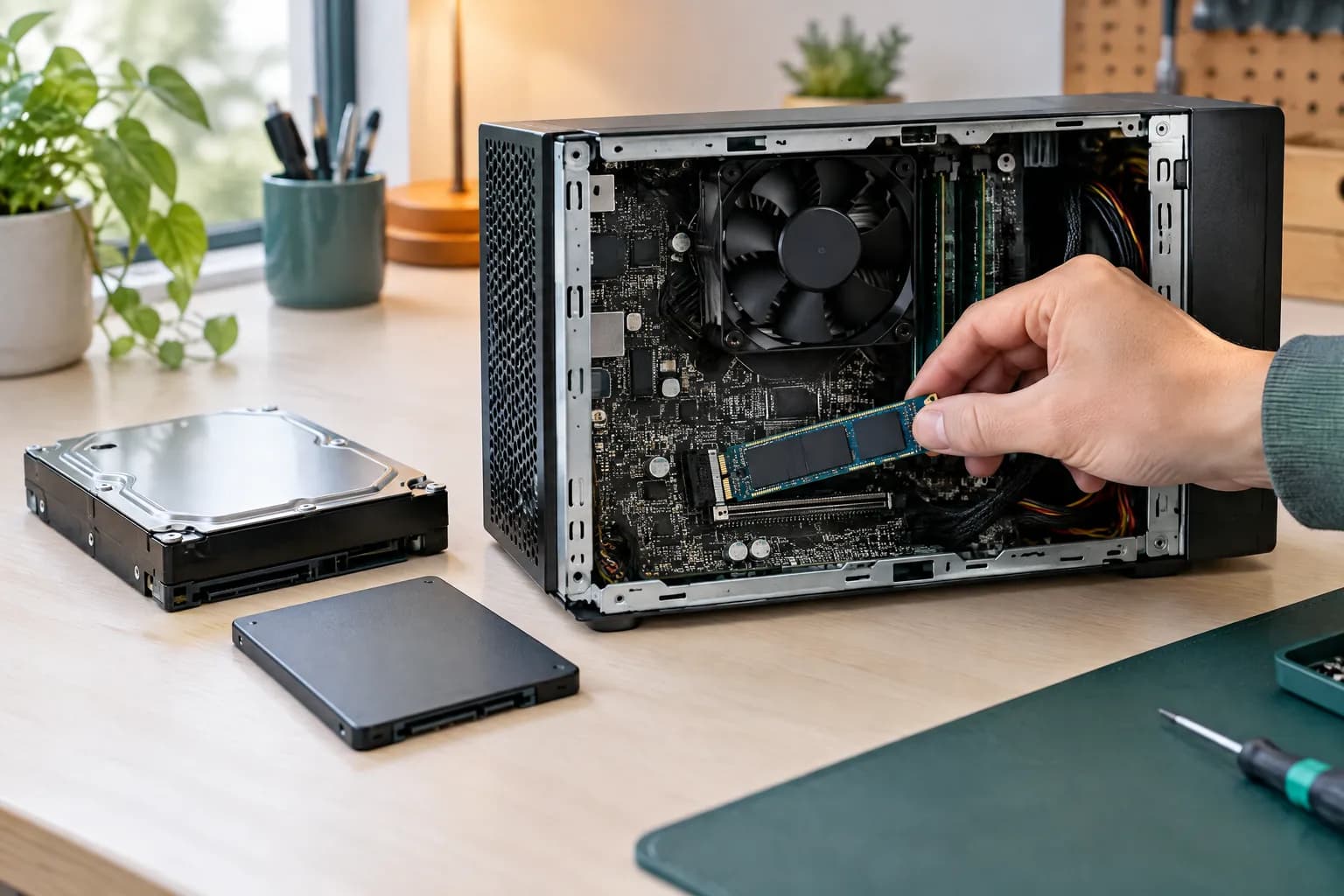
To upgrade office desktops to SSDs, confirm what each model's slots accept (M.2 NVMe, M.2 SATA or a 2.5-inch bay), choose one drive model with comfortable capacity headroom, reimage or clone in controlled batches, and sanitize the hard drives you remove before they leave the building.
Many fleets in Africa and the Gulf still run desktops that boot from a hard drive. The processors in those machines are often perfectly adequate for office work; the hard drive is what makes them slow to start, slow to update and slow to open files. Replacing it with a solid-state drive is quick, inexpensive per seat and one of the few upgrades users notice on the very first morning.
Which machines are worth upgrading?
Start from your operating system plan. Windows 10 support ended in October 2025, so a desktop that cannot run Windows 11, because of its processor generation or a missing TPM 2.0, gains little from a new drive unless it will run Linux, a thin-client operating system or paid extended updates. Machines with Intel 8th generation, AMD Ryzen 2000 series or newer processors are the usual candidates. Check memory at the same time: an SSD paired with 4 GB of RAM still feels sluggish, so plan to bring each machine to at least 8 GB, and preferably 16 GB.
What does the slot accept?
Open one machine of each model, or read the maker's service manual, before ordering in bulk. Three things decide the drive:
- M.2 or 2.5-inch: most recent desktops have at least one M.2 slot, while older towers and SFF units may offer only SATA bays.
- NVMe, SATA or both: an M.2 slot can be wired for PCIe NVMe, for SATA, or for either, and a drive of the wrong type will not be detected.
- Length: desktops usually take 2280 drives, while mini PCs and some all-in-ones take 2242 or 2230; check the standoff position and any heatsink or bracket the slot expects.
| Format | Interface | Where you find it | Notes |
|---|---|---|---|
| M.2 2280 NVMe | PCIe x4 | Most current desktops and many laptops | The default where the slot supports NVMe |
| M.2 2242 or 2230 NVMe | PCIe x4 or x2 | Mini PCs, slim laptops, some all-in-ones | Shorter drives; check the standoff |
| M.2 2280 SATA | SATA 6 Gb/s | Older machines with SATA-wired M.2 slots | B+M keyed; not detected in NVMe-only slots |
| 2.5-inch SATA SSD | SATA 6 Gb/s | Tower and SFF drive bays, older laptops | Needs SATA data and power; may need a bay adapter |
How much capacity should each machine get?
For a standard office image with Windows 11, Microsoft 365 apps and a browser, 256 GB works but fills up as updates and caches build. 512 GB gives comfortable headroom for several years of updates and local files. Where user files live in OneDrive, SharePoint or on a file share, there is little reason to go larger. Engineering, design and media users who keep projects locally may need 1 TB or a second drive. Whatever you pick, use one model and capacity across the batch so imaging and spares stay simple.
Clone or reimage?
Reimaging gives every machine the same clean, current baseline and clears years of leftover software, so it suits a fleet. It does need a tested image, driver packs for each model and a way to restore user data. Cloning copies the old drive onto the SSD and suits small batches, machines with awkward line-of-business software, or sites without imaging tools. If you clone, confirm that the clone tool supports the target drive, that partitions are aligned, and that the machine boots in UEFI mode rather than legacy BIOS.
Either way, check the firmware settings after the swap. The storage mode should match the maker's recommendation for the new drive, Secure Boot should be on, and the boot order should point at the SSD. If BitLocker or another disk encryption was active, suspend it before cloning, turn it back on afterwards, and make sure the recovery keys are stored where your support team can find them.
How do you run the upgrade as a project?
- Pilot first: upgrade a handful of machines of each model and let them run for a week
- Batch by model, so the right drive, bracket and driver pack reach each desk
- Work out of hours or on a rota, so no team loses every machine at once
- Label each removed hard drive with the asset tag of the machine it came from
- Record the new drive's serial against the asset in your register
- Keep a few spare SSDs of the same model for failures and late additions
What happens to the old hard drives?
The drives you take out still hold user files, cached credentials and business data, so treat them as confidential until they are sanitized or destroyed. Drives that will be reused or resold can be overwritten or securely erased; drives headed for scrap are best destroyed by a contractor who issues a certificate per serial. Our guide to drive sanitization explains the levels and the records to keep.
How we quote SSD upgrades
Send the desktop models, the quantity of each and the capacity you want. We confirm slot type, length and interface for every model, quote one drive model where possible, and add brackets, screws or SATA cables where a model needs them. New drives arrive sealed; where pulled SSDs are quoted as spares, each comes with a health readout and a sanitization record. Availability and lead time are confirmed in the written quote.
Related pages
Related reading
Leave a Comment
Your email address will not be published.